---
title: Deploying Namazu Crossfire in your game
description: "**Namazu Crossfire** is currently distributed as separate **[Element](https://namazustudios.com/glossary/element/)**, which means you must install it separately. We publish stable releases to [Maven Central](https://central.sonatype.com/artifact/dev.getelements.elements.crossfire/crossfire/1.0.2) and therefore you can simply include Crossfire as a dependency in your game's [Custom Code](https://namazustudios.com/docs-category/custom-code/). **Namazu Crossfire** implements…"
url: "https://namazustudios.com/docs/add-ons/crossplay-gaming-backend/deploying-crossfire-in-your-game/"
updated: "2026-08-13"
category: "Add-Ons / Crossplay"
---
# Deploying Namazu Crossfire in your game
**Namazu Crossfire** is currently distributed as separate **[Element](https://namazustudios.com/glossary/element/)**, which means you must install it separately. We publish stable releases to [Maven Central](https://central.sonatype.com/artifact/dev.getelements.elements.crossfire/crossfire/1.0.2) and therefore you can simply include Crossfire as a dependency in your game's [Custom Code](https://namazustudios.com/docs-category/custom-code/). **Namazu Crossfire** implements a single [WebSocket](https://namazustudios.com/docs/custom-code/websockets/) endpoint which will handle the real time matchmaking process.
## Prerequisites
📝 Note
Starting with Namazu Crossfire 1.0.4 and later, the [Element](https://namazustudios.com/glossary/element/) artifact has been renamed to `server` with the *[Classifier](https://www.baeldung.com/maven-artifact-classifiers)* `Element`
```
dev.getelements.elements.crossfire server ${crossfire.version} element provided
```
- This guide assumes you have already completed the steps required to establish an **[Application](https://namazustudios.com/glossary/application/) configuration for Matchmaking**. If you haven't already done so, please work through the process of [**Creating a Matchmaking [Application](https://namazustudios.com/glossary/application/) Configuration**](https://namazustudios.com/docs/namazu-elements-core/features/configuration/matchmaking/)
- You have sufficient access to publish **[Custom Code](https://namazustudios.com/docs-category/custom-code/)** to your instance of Namazu Elements.
- You have reviewed or are familiar with making a **Custom [Element](https://namazustudios.com/glossary/element/)**. Reviewing the Example Code is a great place to start.
- You have completed the steps necessary to setup your **local environment** and have [git](https://git-scm.com/) installed.
- [🖥️ - Windows](https://namazustudios.com/docs/getting-started/setup-for-windows/)
- [🍎 - Mac](https://namazustudios.com/docs/getting-started/mac-os-setup/)
- [🐧 - Linux](https://namazustudios.com/docs/getting-started/%f0%9f%90%a7ubuntu-linux-setup/)
# Local Development in IDE
It is possible to run Namazu Crossfire directly in your local IDE along side your game's custom [Element](https://namazustudios.com/glossary/element/). This enables you to rapidly iterate on development cycles without needing to push to the cloud. Additionally, you can step through and debug any additional endpoint code.
## Automatic Method
The latest [**[Element](https://namazustudios.com/glossary/element/) Example project**](https://github.com/NamazuStudios/element-example) incorporates Namazu Crossfire right out of the box as of the 3.4 release. However, it must be enabled by activating the [Profile](https://namazustudios.com/glossary/profile/) to include it as a dependency.
```
namazu-crossfire
- false
+ true
dev.getelements.elements.crossfire
element
${crossfire.version}
```
By changing to true and rebuilding the project, you have enabled Namazu Crossfire in your local environment.
📝 Note
It is sometimes necessary to clean the build before running as re-running local does not always immediately clean up the classpath. Cleaning the build guarantees a complete rebuild of the [Element](https://namazustudios.com/glossary/element/) path.
```
mvn clean
```
## Manual Method
This guide is here to incorporate Crossfire into an existing game.
### 1. Changes to `` in `pom.xml`
Crossfire has a single dependency that needs to be added to your [Element](https://namazustudios.com/glossary/element/).
```
dev.getelements.elements.crossfire
element
${crossfire.version}
```
### 2. Update `` in `pom.xml`
```
1.0.4
```
📝 Note
Do not replace the entire properties section. only add `1.0.4` to the existing properties
```
1.0.2
```
### 3. Make the SDK Aware of Namazu Crossfire
In order to make the SDK aware of the Crossfire [Element](https://namazustudios.com/glossary/element/), you must update the loader to include it in the [Application](https://namazustudios.com/glossary/application/).
```
// Create the local instance of the Elements server
final var local = ElementsLocalBuilder.getDefault()
.withElementNamed(
"example",
"com.mystudio.mygame",
PropertiesAttributes.wrap(elementProperties))
+ .withElementNamed(
+ "example",
+ "dev.getelements.elements.crossfire",
+ PropertiesAttributes.wrap(crossfireProperties))
.build();
```
📝 Note
Be sure to replace the [name](https://namazustudios.com/glossary/name/) "example" with the [Application](https://namazustudios.com/glossary/application/) you are using in your particular case.
## Verify Successful Deployment
After enabling in your local IDE, perform the following steps to ensure that Namazu Crossfire was successfully added to the project.
- Launch the Namazu Elements in your IDE.
- Visit your local instance's browser at [http://localhost:8080/admin/](http://localhost:8080/admin/)
- Login using the default credentials or credentials you know to work for a SUPERUSER
- Default Username: root
- Default Password: example
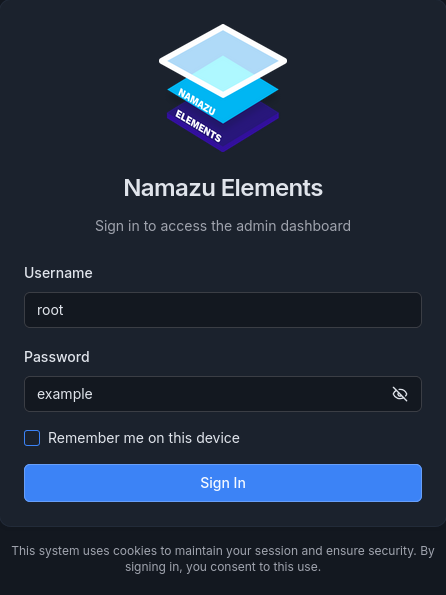
- Check the left-hand side of the Namazu Elements Admin Panel
- Near the bottom you should see your game's [Element](https://namazustudios.com/glossary/element/) along side Namazu Crossfire
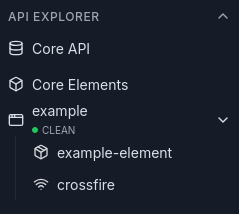
- Ensure that "CLEAN" appears under the [Application](https://namazustudios.com/glossary/application/), in this case the [Application](https://namazustudios.com/glossary/application/) is named "example"
- Click on "crossfire" to see the deployment status.

📝 Note
If you use advanced configuration parameters, such as overriding Namazu Crossfire's default URL these settings may appear slightly differently. The most important things to observe are the deployment status (CLEAN) and the URI from where Namazu Crossfire is hosted.