---
title: Deploying an Element
description: "## Creating an [Application](https://namazustudios.com/glossary/application/) When you are ready to deploy your [Element](https://namazustudios.com/glossary/element/), first you must make sure that you have an [Application](https://namazustudios.com/glossary/application/) created. If you have not done so, create a new [Application](https://namazustudios.com/glossary/application/) either in the CMS or manually via…"
url: "https://namazustudios.com/docs/custom-code/deploying-an-element/"
updated: "2026-08-13"
category: "Your Game Code - Adding Custom Elements"
---
# Deploying an Element
## Creating an [Application](https://namazustudios.com/glossary/application/)
When you are ready to deploy your [Element](https://namazustudios.com/glossary/element/), first you must make sure that you have an [Application](https://namazustudios.com/glossary/application/) created. If you have not done so, create a new [Application](https://namazustudios.com/glossary/application/) either in the CMS or manually via the [Application API](https://namazustudios.com/rest/api/#/operations/createApplication).
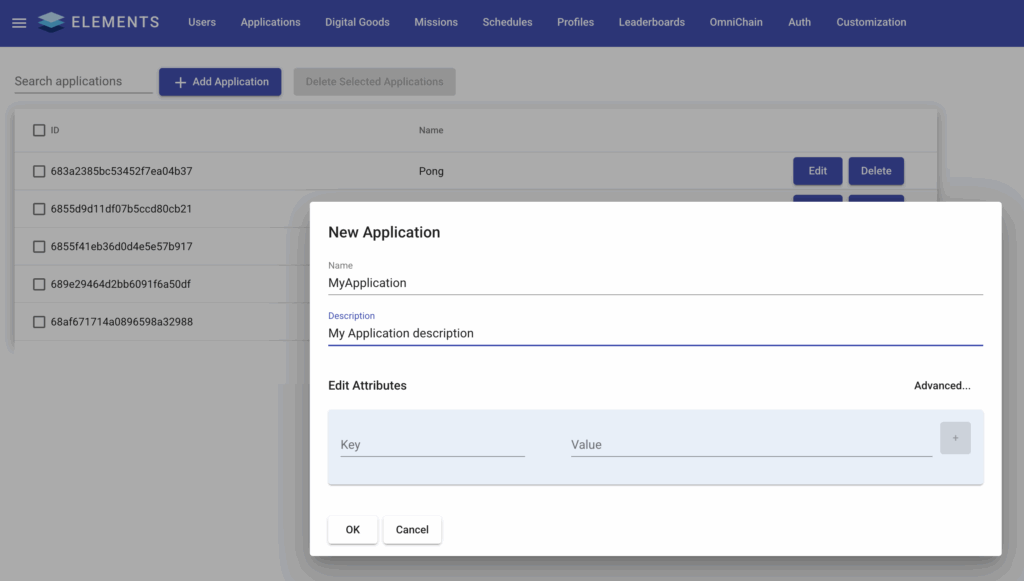
Once the [Application](https://namazustudios.com/glossary/application/) is created, you will have a new git repository for the [Application](https://namazustudios.com/glossary/application/) to upload your code to. If you created the [Application](https://namazustudios.com/glossary/application/) via the [Application](https://namazustudios.com/glossary/application/) API, the property will be `scriptRepoUrl`. If you created it via the CMS, then go to Edit for the newly created [Application](https://namazustudios.com/glossary/application/) to view the URL there.

Once you have the repository URL, you can use the git CLI to `git clone` or use an [Application](https://namazustudios.com/glossary/application/) such as [SourceTree](https://www.sourcetreeapp.com/) to pull the empty repository. This is now your deployment directory.
Note
If you get a 403 when trying to pull, then you'll need to specify the credentials of a [User](https://namazustudios.com/glossary/user/) with SUPERUSER privileges. This can either be done via a [credential helper](https://git-scm.com/doc/credential-helpers) or by adding the credentials to the URL directly, for example:
`git clone http://username:password@localhost:8080/code/MyApplication`
## Configuring the Deployment Directory
Within the deployment directory, two things are needed:
- a properties file, named `dev.getelements.Element.attributes.properties`
- and a `lib` folder
- (see [element-example-deployment](https://github.com/NamazuStudios/element-example) folder for an example of these in the example project repo)
The properties file contains a list of properties that can overwrite Elements [default properties](../docs/custom-code/properties/). This can be useful for adjusting settings based on the environment that you're deploying to.
The `Element-libs` folder will contain your packaged [Element](https://namazustudios.com/glossary/element/) code, as well as the jars of any dependencies that were built alongside it.
## Packaging Your [Element](https://namazustudios.com/glossary/element/) Code
Then, you need to package up your project into a jar. You can do this easily with Maven using the CLI command: `mvn clean package`
This will output two important things into the `target` folder in your project: the jar file for your code, and a dependencies folder called `elements-libs`, with other required jar files.
Note
The jar file for your code will be named based on what is specified in the `pom.xml` file at the root of your project. For example:
`org.exampleElementSample1.0-SNAPSHOT`
will generate `ElementSample-1.0-SNAPSHOT.jar`

Next, copy your jar file, as well as all of the jars inside of `Element-libs` (not the directory itself, but all of the contents) into your Deployment Directory `lib` folder. After copying these, your Deployment Directory should look like this:

Note
Unless you've updated Namazu Elements or your dependencies, you can just replace the one jar for your [Element](https://namazustudios.com/glossary/element/) code for subsequent deployments.
## Deployment
Once the jars and properties are in place, make sure that you've added and committed your changes in git. Once committed, you're good to push!
Warning
If you're using branches in your Deployment Directory, it will be necessary to specify that you want to push to `main`, as branching [Element](https://namazustudios.com/glossary/element/) code is not supported internally, and changes pushed to anything other than the `main` branch will not be run.
This can be done like so:
`git push origin my-branch:main`
After pushing, you may need to restart the container to apply the changes. Via the CLI, you can use `Docker ps` to get the list of containers and then `docker restart `. In this case we would want to restart the ws (web services) container like so:

You can also use [Docker](https://namazustudios.com/glossary/docker/) Desktop to restart the container:

Once the container has restarted, you should be able to confirm that your custom code was recognized in the logs, along with the relative root path for its API calls. For example:
`21:43:22.220 [main] INFO o.e.j.server.handler.ContextHandler - Started oeje10s.ServletContextHandler@7fecc26f{/app/REST/example-Element,/app/REST/example-Element,b=null,a=AVAILABLE,h=oeje10s.ServletHandler@402adc9c{STARTED}}`