

When creating a new Session, you have the option to authenticate using a predefined OAuth2 Auth Scheme. #
OAuth2 Auth Scheme Anatomy #
OAuth2 Auth Schemes are comprised of:
- the Scheme name
- a Validation URL, which Elements will use to validate the token it receives
- the Response Id Mapping, which Elements will use to get the user id from the validation request (see below for example)
- a list of Headers and a list of Parameters for the validation request, which can be predefined, or sent from the client and filled in by Elements before making the validation request
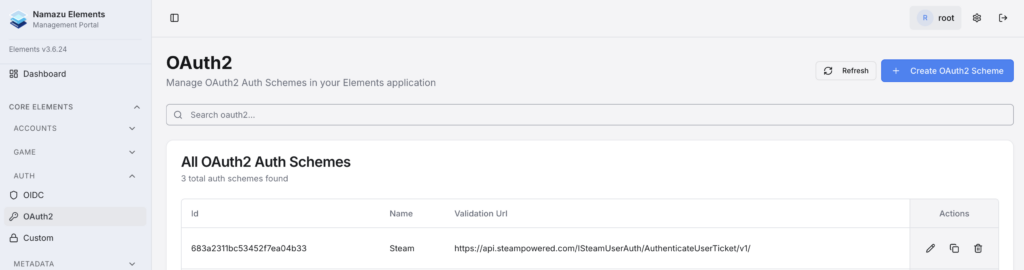
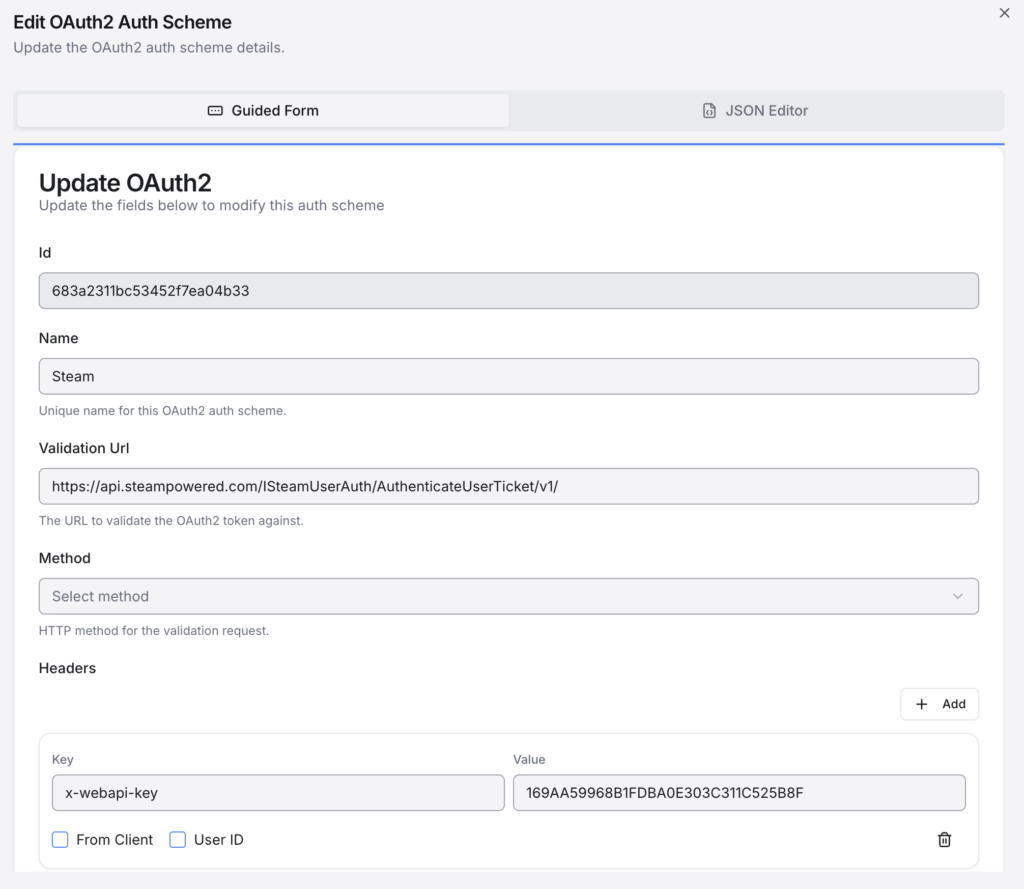
Since the requirements for OAuth2 vary by provider, we’ve created a system that is flexible enough for any spec. For instance, some systems, such as Oculus, require that you send the user id from the client alongside the validation token. We’ve added a User Id flag that allows you to flag either a header, parameter, or body property as the User Id (only one is allowed) in these instances. In other cases, the user id comes back in the response when validating the token. In these cases, we’ve provided an id mapper. In any case, it’s very important to look at the docs for the oauth provider and understand exactly what they’re expecting.
Once the validation request comes back successfully, Elements will link the provided/returned user id to the internal Elements user id.
Auth Scheme Properties #
Here’s a breakdown of the auth scheme properties and what they represent:
| Id | The Elements database id. |
| Name | The unique name of this scheme in the Elements system. |
| Validation Url | The URL that the server to server validation request will be sent to. |
| Headers | Any headers that the validation request might be expecting. Can mark as fromClient, indicating that this will be sent from the client. Otherwise, it assumes that this was predefined in the auth scheme. |
| Params | Any query parameters that the validation request might be expecting. Can mark as fromClient, indicating that this will be sent from the client. Otherwise, it assumes that this was predefined in the auth scheme. |
| Body | (POST requests only) Any body parameters that the validation request might be expecting. Can mark as fromClient, indicating that this will be sent from the client. Otherwise, it assumes that this was predefined in the auth scheme. |
| Response Id Mapping | Determines how to map the user id in the response. Will search the response for the corresponding key. For example, if the response is structured like: {“response”: { “params” : { “steamid” : <id> } } } then you only need to input “steamid”. Ignored if one of the parameters is marked as user id. |
| Response Valid Mapping | Optional key in the response whose value indicates whether the token/user is valid. For example: “is_valid”, “active”, or “success”. If not set, only the HTTP status code is used. |
| Response Valid Expected Value | Optional expected value for the validation field. If null: – boolean true is treated as success – non-empty/non-null for non-boolean values is treated as success. If set, the field’s string value must equal this. |
| Valid Status Codes | HTTP status codes that are considered “processable” for validation. Any other status is treated as failure before inspecting the body. Defaults to [200]. |
| Method | HTTP method for the validation request (GET or POST). |
| Body Type | How to encode the request body when using POST. FORM_URL_ENCODED corresponds to application/x-www-form-urlencoded. |
Steam Example #
One of the default OAuth2 Auth Schemes is for authenticating via Steam. We’ll use this as an example as to how these can be used.
Note
It will be necessary to have a registered application on Steam, as this process will require an application id.
The goal here is to have our client application retrieve an auth ticket from Steam, then to send that to Elements, which in turn will use the ticket to verify the corresponding user id.
Note
This assumes that you already have a process set up to retrieve the auth ticket, either manually as depicted in the Steam documentation, or through a client library, such as Steamworks.net.
First let’s look at the auth scheme to determine what Elements is expecting:
{
  "id": "683a2311bc53452f7ea04b33",
  "name": "Steam",
  "validationUrl": "https://api.steampowered.com/ISteamUserAuth/AuthenticateUserTicket/v1/",
  "headers": [
    {
      "key": "x-webapi-key",
      "value": "169AA59968B1FDBA0E303C311C525B8F",
      "fromClient": false,
      "userId": false
    },
    {
      "key": "Content-Type",
      "value": "application/x-www-form-urlencoded",
      "fromClient": false,
      "userId": false
    }
  ],
  "params": [
    {
      "key": "appid",
      "value": "370140",
      "fromClient": false,
      "userId": false
    },
    {
      "key": "ticket",
      "value": "Ticket from GetAuthSessionTicket (Sent from frontend)",
      "fromClient": true,
      "userId": false
    },
    {
      "key": "identity",
      "value": "nebtest",
      "fromClient": false,
      "userId": false
    }
  ],
  "responseIdMapping": "steamid",
  "validStatusCodes": [
    200
  ]
}
We’re basically telling it how to format the request that Elements will send to the authenticating server. In this case, we’re telling Elements to expect the ticket to be sent from the client (the only header or parameter with fromClient as true), and that all other values will be preset in the scheme and stored within Elements.
Note
When you make the call to GetAuthTicketForWebApi to retrieve the auth ticket, you pass in an identity value. This can be anything (or nothing), but must match on the client and server side.
When we make a request against the /auth/oauth2 endpoint, Elements will format a new request using the headers and params information in the scheme, and will send the request to the validationUrl defined in the scheme. In this case, we only told the scheme to expect one parameter, "ticket", and no headers from the client, so our request would look like this:
Example:
POST http://localhost:8080/api/rest/auth/oauth2

Body:
{
    "schemeId":"Steam",
    "requestParameters" : {
        "ticket":"<Your Steam ticket from GetAuthTicketForWebApi call. Will be very long, around 5120 characters.>""
    }
}
When Elements receives the response, it will use the responseIdMapping to look for a corresponding key, and will assume the value of this key is the user’s id.
Example response from Steam (handled internally in Elements):
{
    "response": {
        "params": {
            "result": "OK",
            "steamid": "<steam user id>",
            "ownersteamid": "<steam user id>",
            "vacbanned": false,
            "publisherbanned": false
        }
    }
}
If Elements retrieves the user id successfully, it will automatically associate this Steam user id with an Elements user, and return the Elements Session object back to you.
Once you have the Session object, just add the sessionSecret to the Elements-SessionSecret header for subsequent requests, and you’re all set!