

 Doc Summary

❗Pre-Release ❗
Note: The Namazu Elements Roblox Kit is currently in pre-release. To access the Roblox Support in Namazu Elements please reach out and request access using our Contact Us Form.
One of the core features of the Namazu Elements Roblox Kit is secure player authentication. When a player first joins your game, a server script can use the kit to authenticate the player with Namazu Elements. This is done via a single HTTP request from a server-side script (using Roblox’s HttpService) to the kit’s authentication endpoint, providing your Namazu Application id and the player’s Roblox UserId. The result is a Session token (called a sessionSecret) that uniquely identifies the player’s Session with Namazu Elements. All subsequent requests to Namazu services in this Session must include this token for authorization.
This authentication flow doubles as a player registration step – if the player doesn’t already have a Namazu account, the kit will automatically create a new Namazu User and Profile linked to their Roblox User id. The kit even uses Roblox’s API to fetch basic Profile information (like the player’s username or avatar) and populate the Namazu Profile on first signup. This means each Roblox player is seamlessly onboarded into Namazu Elements without any additional input or manual account creation. The entire process is designed with security in mind: it runs only on server-side scripts using your Namazu Application Secret (never on the client), so that players cannot tamper with it. Your Application Secret is used to verify the request and should be stored safely in Roblox’s secure Secrets storage, not in any client-facing code. Once authenticated, the player’s Session token can be stored server-side (for example, in a variable or server memory) for as long as the player is in game, and used to call other Namazu Element services on behalf of that player. In short, the Roblox Kit provides a secure, Roblox-trusted login mechanism into Namazu’s system: leveraging the player’s Roblox identity and Roblox’s secure server scripts to establish a Namazu Session.
Step-by-Step Guide #
The following steps are required to register a Roblox User in Namazu Elements. Once you register a User and obtain a Session, you can make API calls against the Namazu Elements API. Creating sessions ensures that users are automatically kept in-sync between Roblox and Namazu Elements.
1. Login to the Management Portal #
Visit your instance of Namazu Elements by pointing our browser to https://your-instance.example.com/admin/

2. Create an Application #
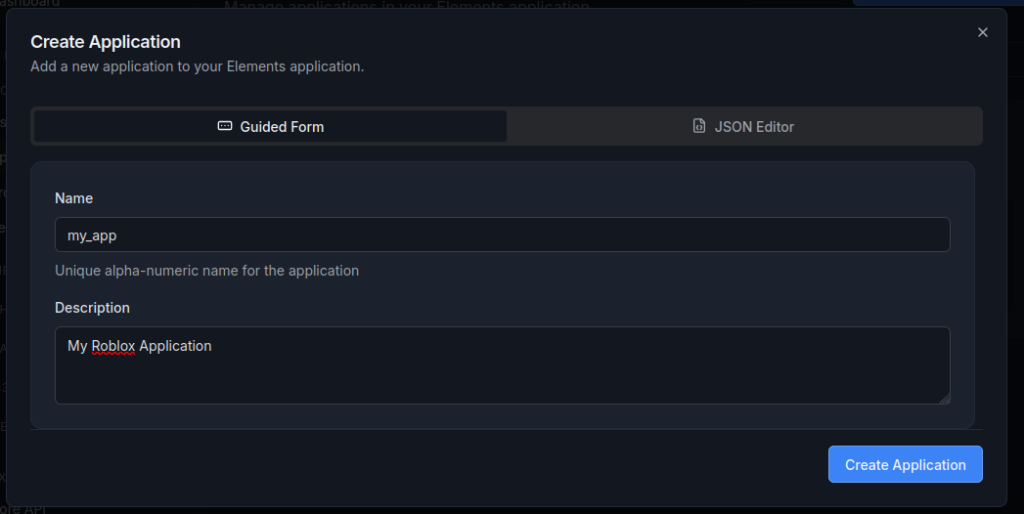
Navigate to Applications → Create Application
📝Architecture Notes
We recommend making a separate Namazu Elements Application per Roblox Experience. This ensures that players have unique and independent Profiles per published Experience. See more on Users and Profiles.
3. Deploy the Roblox Kit to the Instance #
At the time of this writing, Namazu Roblox Kit is distributed as a separate Element. Refer to the Custom Code section on how to install the Element to your instance. In addition to the standard deployment process, it is necessary to configure the RobloxKit Secret to ensure secure communication between Roblox’s server and Namazu Elements. To set this, deploy the Element with the following configuration set. (Changed <redacted> to a secret of your choice).
dev.getelements.robloxkit.secret=<redacted>⚠️ Guard this Secret ⚠️
This secret provides access to your Namazu Elements instance. If it is leaked, change it immediately and update all code. If a malicious third party finds this secret, they can essentially masquerade as any valid Roblox player.
4. Verify Roblox Secret was Set Correctly #
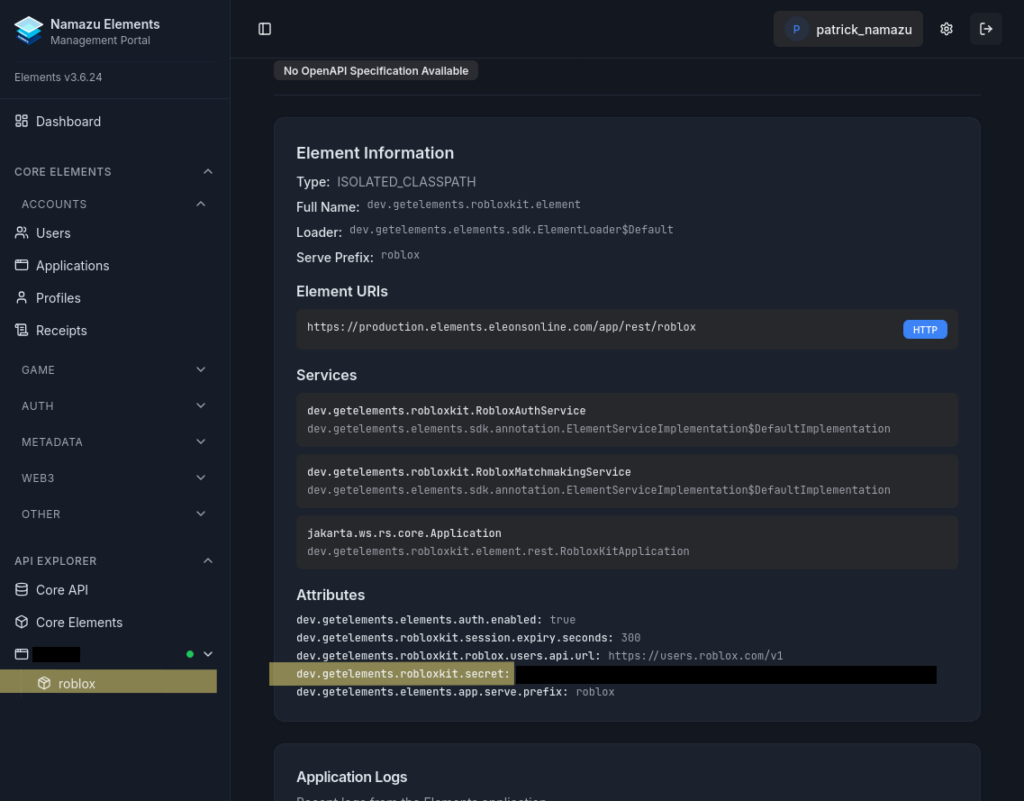
Once deployed, check that the Roblox Kit deployed successfully. Verify:
- A “Green Light” appears next to the Application name in the left bar, indicating successful deployment.
- There are no errors in the Application logs
- That the configured secret appears in the Management Portal
5. Verify Registration Works Correctly #
Using your preferred RESTful client, make an API call to the instance authorizing a User.
- HTTP Method:
POST - URI:
/app/REST/roblox/auth - Header:
RobloxKit-Secrret: <recacted> - Body
{"robloxUserId":xxxxxxxx, "Application":"my_application"}
For quick reference, the following Curl command will test your instance:
curl -d '{"application":"my_app", "robloxUserId":"XXXXXXXXXXXX"}' \
     -H "Content-Type: application/json" \
     -H "RobloxKit-Secret: <redacted>" \
     https://my-instance.example.com/app/rest/roblox/auth
6. Check that the Profile Matching the Roblox Player exists in Namazu Elements #
Navigate to Profiles on the left hand navigation menu and find the Profile matching the Roblox User you tested against.
