Skip to content
  • Our Product
    • Namazu Elements
      • What is Elements?
      • Why open source?
      • Docs
        • Elements in Five Minutes or Less
        • RESTful APIs Library
        • Security Model
        • Accessing the Web UI (CMS)

    Our Product

    A logomark with three layered rhombuses adorning the lettermark that says Elements in bold all-caps sans-serif letters.
    • What is Namazu Elements? Discover our easy-to-use backend network solution built for online games. Rapidly enables full-scale multiplayer games or online solo adventures.
    • Why open source? Is there a truly open source server backend for connected games? There is now. Download and run a local copy of Namazu Elements and try it for yourself.
    Download Namazu Elements

    Get started

    • Quick start Read our Elements 5-minute quick start guide
    • Documentation Read our developer docs for learning more about Elements
    • RESTful APIs A full list of core API specs for working with the Elements framework
    • Security An overview of the server-authoritative security model of Elements
    • Accessing the CMS Manage your game with ease via the Namazu Elements CMS.

    Co-development Reimagined

    • Reduce your costs Would you rather outsource your backend development? Hire Namazu Studios to build your server backend with the power of Namazu Elements.
      Co-dev

    Recent Posts

    • The watercolor-styled Namazu Studios logo over a giant namazu lurking in the depth
      Namazu Studios Featured in San Diego Business Journal
      22 Sep 2025 Press
    • Namazu Elements 3.1 Released – Service Layer Fixes, Secure APIs, and Steam Bug Fix
      22 Apr 2025 Release Notes
  • Case Studies
  • About Us
  • News
  • Services
  • Book a call
namazu-studios-logo
Book a call

Getting Started

  • Elements in Five Minutes or Less
  • 🐧Ubuntu Linux Setup
  • 🍎 Mac OS Setup
  • 🖥️ Setup for Windows
  • Accessing the Web UI (CMS)
  • General Concepts
  • N-Tier Architecture
  • Security Model

Namazu Elements Core

  • User Authentication / Sign In
    • What is a User?
    • User Authentication in Elements
    • Auth Schemes
      • Auth Schemes
      • OAuth2
      • OIDC
  • Features
    • Applications
    • Sessions
    • Users and Profiles
    • Digital Goods
    • Progress and Missions
    • Progress and Missions (3.4+)
    • Leaderboards
    • Matchmaking – Comprehensive Guide
    • Followers
    • Friends
    • Reward Issuance
    • Save Data
    • Metadata
    • Metadata (3.4+)
    • Queries
    • Web3
      • Wallets
      • Vaults
      • Omni Chain Support
      • Smart Contracts
        • Smart Contracts
  • Queries
    • Advanced Operators
    • Object Graph Navigation
    • Boolean Queries
    • Base Query Syntax
  • Advanced Operators
    • .name
    • .ref

Custom Code

  • Custom Code Overview
  • Introduction to Guice and Jakarta in Elements
  • Structuring your Element
  • Packaging an Element with Maven
  • Deploying an Element
  • Preparing for Code Generation
  • Properties
  • Websockets
  • RESTful APIs
  • Direct MongoDB Access (3.5+)

Releases

  • 3.4 Release Notes
  • 3.3 Release Notes
  • 3.2 Release Notes
  • 3.1 Release Notes

Configuration

  • Matchmaking – Comprehensive Guide
  • Direct Database Access and Batch Configuration
  • Batch Samples
    • Mission Upload Bash Script Sample
    • Item Upload Bash Script Sample

RESTful APIs

  • RESTful APIs Library
  • Swagger and Swagger UI

Crossplay

  • Namazu Crossfire
  • Deploying Namazu Crossfire in Your Game
View Categories
  • Home
  • Docs
  • Custom Code
  • Deploying an Element

Deploying an Element

Est. read time: 2 min read

Creating an Application #

When you are ready to deploy your Element, first you must make sure that you have an Application created. If you have not done so, create a new Application either in the CMS or manually via the Application API.
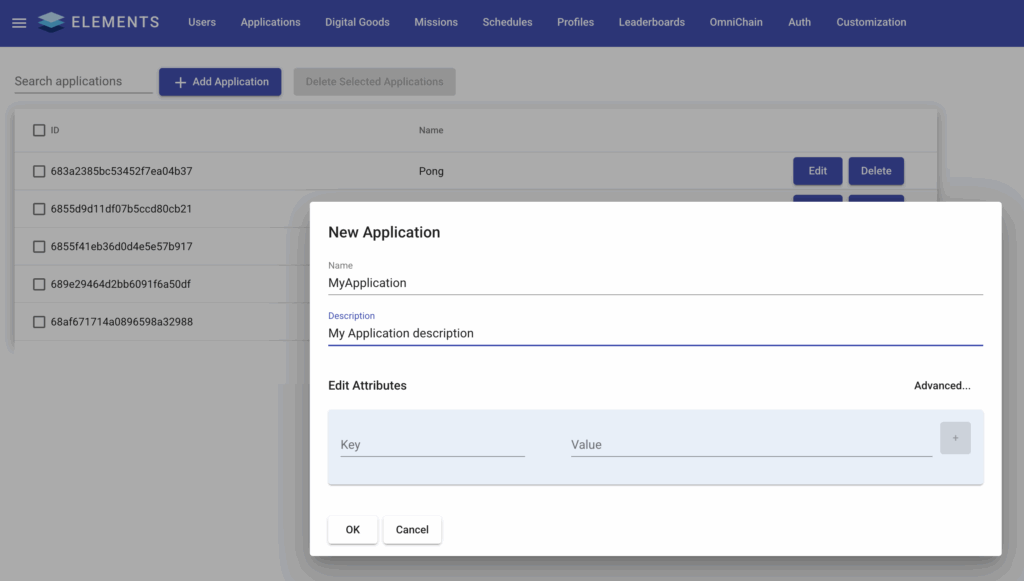
Once the Application is created, you will have a new git repository for the Application to upload your code to. If you created the Application via the Application API, the property will be scriptRepoUrl. If you created it via the CMS, then go to Edit for the newly created Application to view the URL there.

Once you have the repository URL, you can use the git CLI to git clone or use an application such as SourceTree to pull the empty repository. This is now your deployment directory.

Note

If you get a 403 when trying to pull, then you’ll need to specify the credentials of a User with SUPERUSER privileges. This can either be done via a credential helper or by adding the credentials to the URL directly, for example:
git clone http://username:password@localhost:8080/code/MyApplication

Configuring the Deployment Directory #

Within the deployment directory, two things are needed:

  • a properties file, named dev.getelements.element.attributes.properties
  • and a lib folder
  • (see element-example-deployment folder for an example of these in the example project repo)

The properties file contains a list of properties that can overwrite Elements default properties. This can be useful for adjusting settings based on the environment that you’re deploying to.

The element-libs folder will contain your packaged Element code, as well as the jars of any dependencies that were built alongside it.

Packaging Your Element Code #

Then, you need to package up your project into a jar. You can do this easily with Maven using the CLI command: mvn clean package

This will output two important things into the target folder in your project: the jar file for your code, and a dependencies folder called elements-libs, with other required jar files.

Note

The jar file for your code will be named based on what is specified in the pom.xml file at the root of your project. For example:
<groupId>org.example</groupId>
<artifactId>ElementSample</artifactId>
<version>1.0-SNAPSHOT</version>

will generate ElementSample-1.0-SNAPSHOT.jar

Next, copy your jar file, as well as all of the jars inside of element-libs (not the directory itself, but all of the contents) into your Deployment Directory lib folder. After copying these, your Deployment Directory should look like this:

Note

Unless you’ve updated Namazu Elements or your dependencies, you can just replace the one jar for your Element code for subsequent deployments.

Deployment #

Once the jars and properties are in place, make sure that you’ve added and committed your changes in git. Once committed, you’re good to push!

Warning

If you’re using branches in your Deployment Directory, it will be necessary to specify that you want to push to main, as branching Element code is not supported internally, and changes pushed to anything other than the main branch will not be run.

This can be done like so:
git push origin my-branch:main

After pushing, you may need to restart the container to apply the changes. Via the CLI, you can use docker ps to get the list of containers and then docker restart <container-name>. In this case we would want to restart the ws (web services) container like so:

You can also use Docker Desktop to restart the container:

Once the container has restarted, you should be able to confirm that your custom code was recognized in the logs, along with the relative root path for its API calls. For example:
21:43:22.220 [main] INFO o.e.j.server.handler.ContextHandler - Started oeje10s.ServletContextHandler@7fecc26f{/app/rest/example-element,/app/rest/example-element,b=null,a=AVAILABLE,h=oeje10s.ServletHandler@402adc9c{STARTED}}

What are your Feelings
Still stuck? How can we help?

How can we help?

Updated on August 27, 2025
Packaging an Element with MavenPreparing for Code Generation
Table of Contents
  • Creating an Application
  • Configuring the Deployment Directory
  • Packaging Your Element Code
  • Deployment
  • Documentation
  • Terms of Service
  • Privacy Policy
  • Contact us
  • Linkedin
  • Join our Discord

Namazu Studios LLC is powered by Namazu Elements, an Elemental Computing Inc. product.

Elements
  • Download
  • About Elements
  • Open source
  • Documentation
  • Support
About Namazu
  • Case Studies
  • About Us
  • News
Get in Touch
  • info@namazustudios.com
  • Book a call
  • (619) 862-2890
  • Linkedin
  • Discord

©2008-2025 Namazu Studios. All Rights Reserved.