

Elements allows the creation of Missions, in which users can make progress that is tracked in their user profile. #
Missions are structured tasks through which users can progress. Mission steps are tracked in the user’s progress.
Common use cases for missions are a game’s level structure or a game’s achievements. Missions also allow for the user to earn rewards when steps are completed.
Missions serve as definitions. When a user begins his first mission, a copy of that mission definition is made in the progress attached to that user’s profile for that application. The progress will then record the user’s step completion, as well as rewards issued for step completion.
Warning
A limitation of the current system is that when a mission definition is copied to the progress, it is locked in the state it was defined at that time. So, if developers modify that mission after progress is saved by an user, existing users who have started that mission won’t see the changes – only users who have not yet started the mission will.
This section will guide you on how to interact with the progress and missions APIs.
Mission Structure #
Missions contain an arbitrary number of steps, followed by a single (optional) final repeat step. As the user of your application progresses through a mission, they will go through the steps in sequence.
Once all steps are completed, if there is a final repeat step, that step can be repeated again an unlimited number of times.
For example, you can use the steps for a tiered set of achievements to be completed in sequence, each step with its own set of rewards:
- Collect 5 Stars
- Collect 10 Stars
- Collect 20 Stars
Mission #
- name: This is a string representing the name of your mission. It must be unique and have no spaces.
- tags: You may include a list of tags as strings. Tags are an easy way to search for groups of missions or sort them among your applications.
- displayName: This is a string representing your mission’s display name.
- description: This is a string that serves as a description for your mission.
- steps: Here, all the steps of the mission are represented. Steps have their own structure that is detailed below, with their own corresponding fields.
- finalRepeatStep: This is the optional final repeat step of the mission, which has a similar structure to an individual step.
- metadata: Metadata is optional. It can include any number of named strings or integers. Metadata can have many uses. For example, secondary descriptions, asset paths, types, or any arbitrary values assigned to your mission.
Mission Steps #
Mission steps define the actual content of the mission. The final repeat step has a structure identical to any other step.
- displayName: This is a string representing your mission’s display name.
- description: This is a string that serves as a description for your mission.
- count: This is an integer that defines how many times an action has to be executed for the step to be completed. For example, if the mission step was “collect 20 stars,” you might have you application increment the user’s progress on this step each time a star is collected, and then the step would be completed when the threshold is reached.
- rewards: Here, the rewards are what the player earns for the completion of the steps that are listed. Rewards are items accompanied by a quantity.
- name: A string naming the item reward. This must match the unique name of a defined item.
- quantity: This is an integer determining how many of each item will be rewarded.
- metadata: Metadata is optional. Steps can have their own metadata separate from the overarching mission. It can be any number of named strings or integers. Metadata can have many uses. For example, secondary descriptions, asset paths, types, or any arbitrary values assigned to your mission step.
In the database, the mission will also have an _id field. This is automatically generated when the mission is created and serves as an internal reference for that mission.
Managing Missions Using the Console #
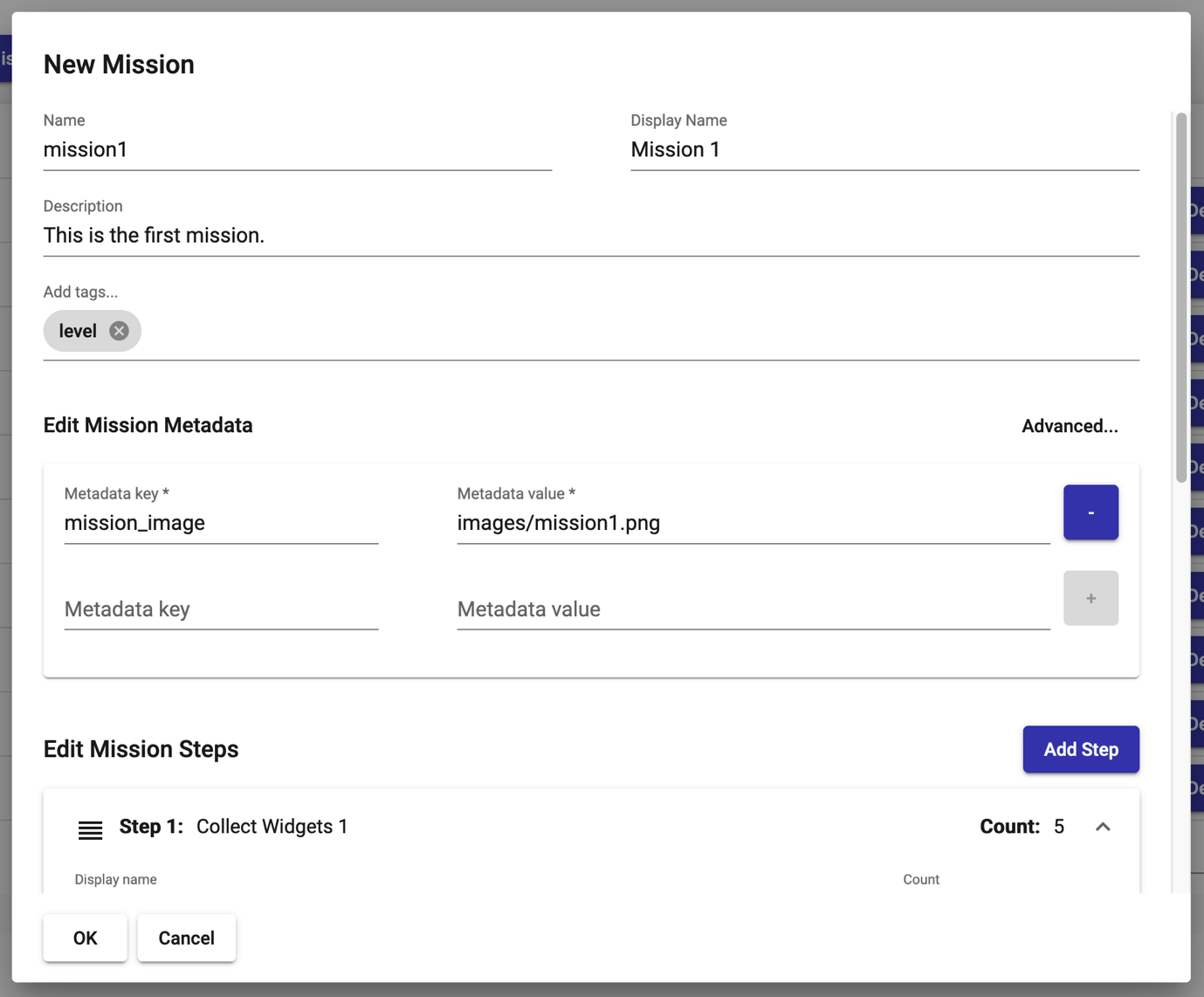
Missions are managed in the Missions section of the admin console, which can be accessed from the upper nav bar or in the hamburger menu.
The “Add Mission” button will open the new item panel.
Missions can be edited by tapping the Edit button next to that mission or they can be deleted by tapping the Delete button. Use the search function to easily find specific missions.
Editing Mission Metadata #
Mission metadata is edited identically to how item metadata is edited. See Editing Item Metadata.
Editing Mission Steps #
Use the Add Step button to create a new step.
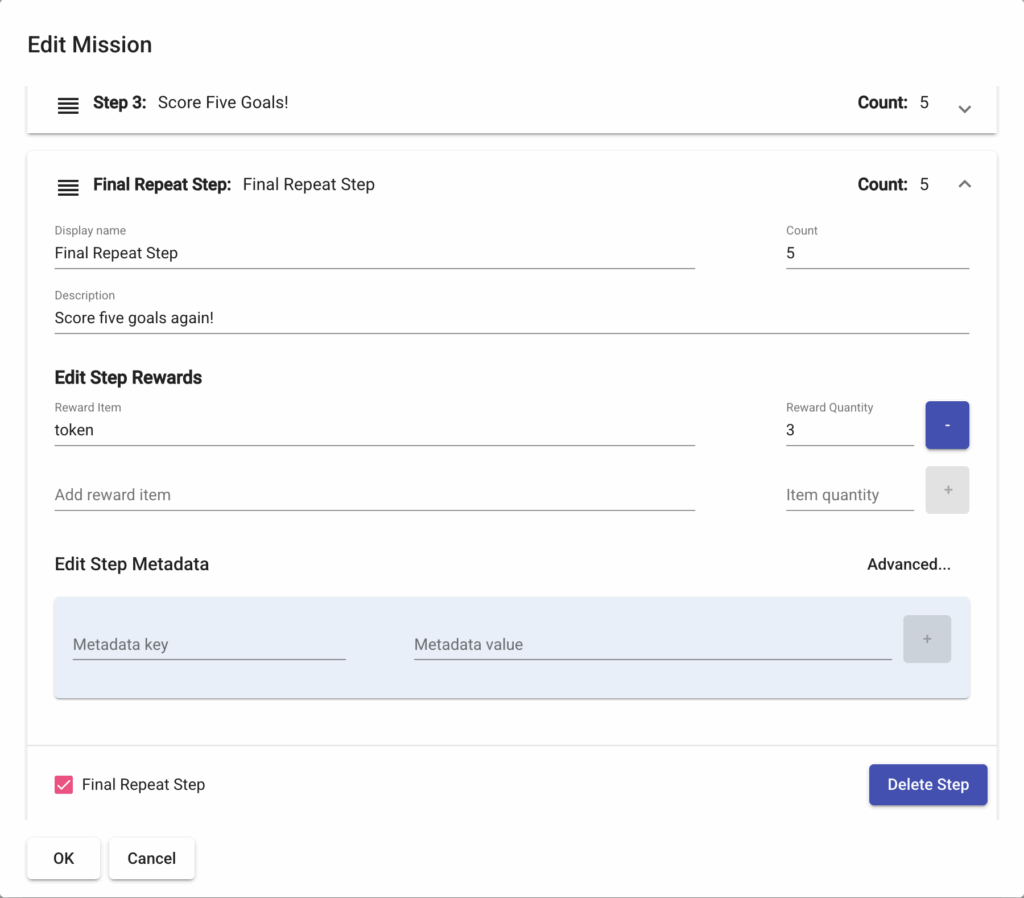
Step content can be displayed or hidden with the dropdown button on the right side of the header. If you have multiple steps, they can easily be reordered by dragging them in the list from the handle icon on the left of the header.
Step rewards are added by naming the reward item and adding a quantity, then using the “+” button to add additional rewards. Item names must be items that exist in your Elements instance.
Step metadata is edited just like general mission metadata, or item metadata.
Use the Delete Step button to delete the step.
Toggling the Final Repeat Step checkbox will set that step as the final repeat step and automatically move it to the end of the sequence.
Mission Step Editor
JSON Structure of Missions #
This is a sample mission represented in JSON.
[{
  "name": "missionName",
  "tags": ["tag1", "tag2", "tag3"],
  "displayName": "Mission Name",
  "description": "This is the mission's description",
  "steps": [
    {
      "displayName": "Step Name 1",
      "description": "This is step 1's description",
      "count": 1,
      "rewards": [
        {
          "item": {
            "name": "itemName"
          },
          "quantity": 1
        }
      ],
      "metadata": {
        "metadata_string": "this is a string",
        "metadata_int": 1
      }
    },
    {
      "displayName": "Step Name 2",
      "description": "This is step 2's description",
      "count": 1,
      "rewards": [
        {
          "item": {
            "name": "itemName"
          },
          "quantity": 1
        },
        {
        "item": {
          "name": "itemName2"
        },
        "quantity": 1
      }
      ],
      "metadata": {
        "metadata_string": "this is a string",
        "metadata_int": 1
      }
    }
  ],
  "finalRepeatStep": {
    "displayName": "Repeat Step Name",
    "description": "This is the repeat step's description",
    "count": 1,
    "rewards": [
      {
        "item": {
          "name": "itemName"
        },
        "quantity": 5
      }
    ],
    "metadata": {
        "metadata_string": "this is a string",
        "metadata_int": 1
    }
  },
  "metadata": {
    "metadata_string": "this is a string",
    "metadata_int": 1
  }
}]
Note
The _id field for the mission is not included in the above example. If you were to use a script to batch upload/update missions, your JSON would look like the above example. The _id field would not be included since that is autogenerated.
Looking directly in the database, you’ll notice that the rewards for a step are listed as below, using the object id for the item rather than its name.
"rewards" : [
            {
                "item" : {
                    "$ref" : "items",
                    "$id" : ObjectId("5cdb1204c44033001a6a2908")
                },
                "quantity" : 50
            }
            ]