

Missions and quests form a key part of a game’s metagame design. They provide structured, rewarding goals that encourage players to return, progress, and engage with your game’s core systems. Properly designed missions drive retention by offering incremental achievements and tangible rewards that reinforce player investment over time.
This guide refers to version of Namazu Elements 3.4 and above.
📝Notes on Missions and Progress
Namazu Elements missions serve a similar purpose to PlayFab’s Quests or Event-based Tasks. Both systems define multi-step objectives that track player progress and grant rewards upon completion. This section explains how to manage missions in Namazu Elements using the admin console.
This guide explains how to create, update and delete missions using the Namazu Elements CMS. A mission is a set of steps that players can complete to earn rewards. Each step has a completion threshold and grants rewards when finished. Missions are defined in the admin console and copied to each user’s profile when they begin the mission, so modifying a mission after users have started it does not affect their existing progress.
Creating a Multi-Step Mission #
- From the navigation menu, choose Progress → Missions. The missions list appears with an Add Mission button.
- Click Add Mission. A blank mission editor opens. Fill in the mission-level fields: Field Description and guidance Display Name Human-readable title shown in the UI. Name Unique identifier used in APIs and scripts. Description Summary of what the mission requires. Tags Comma-separated labels for organisation or filtering (optional). Metadata Key–value pairs for additional data, such as image paths or categories.
- In the Steps section, click Add Step to create the first mission step. For each step, provide: Field Purpose Display Name Name of the step visible to players. Description Brief description of the objective. Count Number of times the player must perform an action to complete the step. For example,
5means the action must be performed five times. Rewards Add rewards by selecting an existing item (e.g.sample_reward) and specifying the quantity. Use the + button to add multiple reward items. Metadata Optional key–value pairs for step-specific data. - Repeat step 3 for additional steps. Increase the
countthreshold and reward quantity for each successive step to encourage continued engagement. Example: Step Count Reward Item Quantity Description 1 5 sample_reward 10 Collect 5 stars 2 10 sample_reward 20 Collect 10 stars 3 15 sample_reward 30 Collect 15 stars - (Optional) Check Final Repeat Step on the last step if it should repeat indefinitely.
- Click Save or Create. The mission definition is stored and appears in the missions list.
Updating a Mission #
- In the missions list, locate the mission you created. Use the search bar or filter tags as needed.
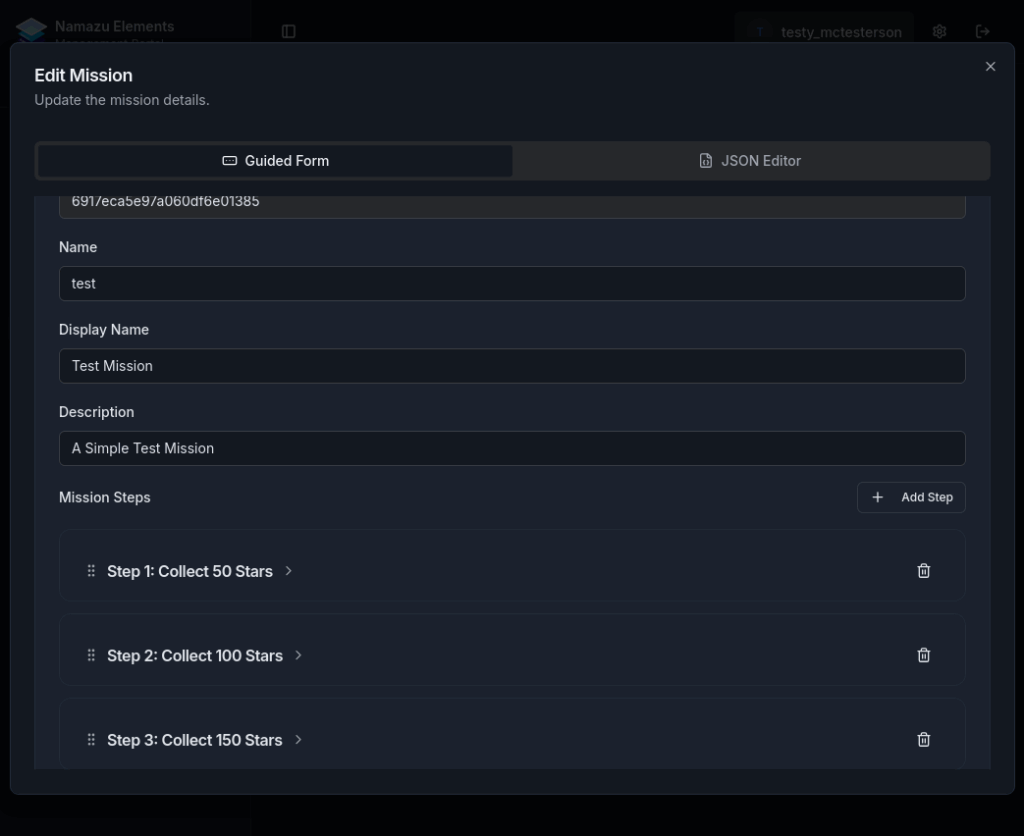
- Click the Edit button next to the mission name. The mission editor opens with current values.
- Update mission-level fields (display name, description, tags, metadata) or modify existing steps:
- Change a step’s Count to alter the completion threshold.
- Adjust reward quantities or add another reward item.
- Use the drag handle to reorder steps.
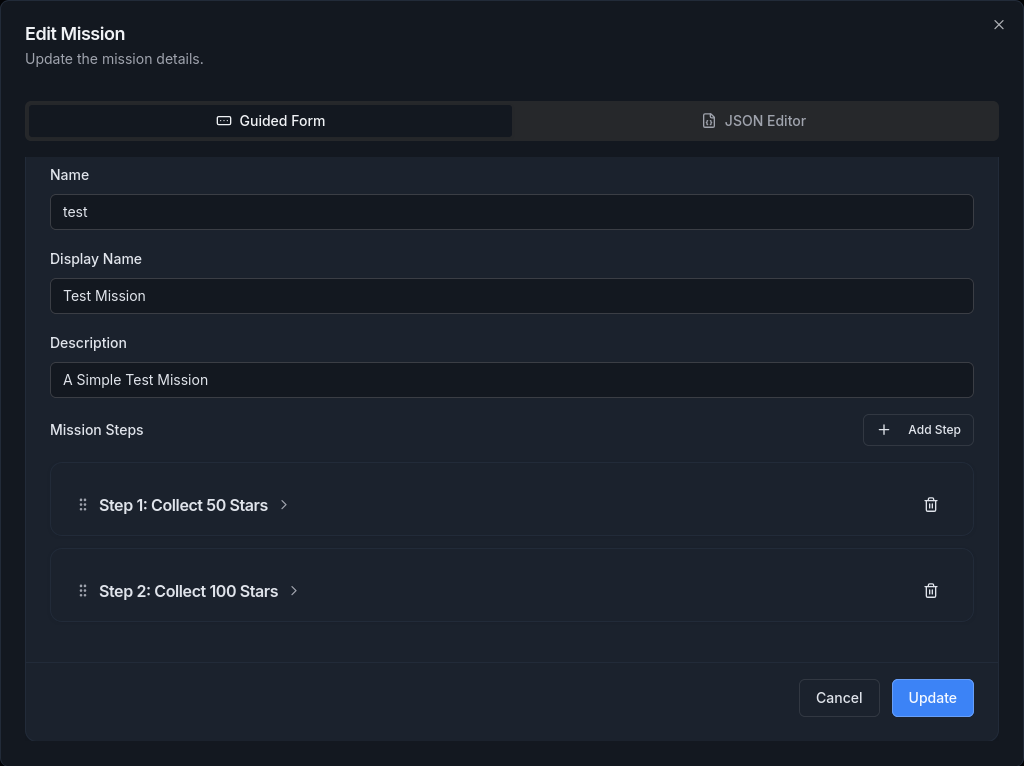
- Click Add Step to insert new steps or Delete Step to remove one.
- After making changes, click Save. The mission definition updates; however, remember that changes do not affect users who already started the mission.
Deleting a Mission #
- In the missions list, find the mission you wish to delete.
- Click the Delete button (trash-can icon) next to the mission.
- Confirm the deletion when prompted. The mission definition is removed from the database.
- Deleting a mission prevents new users from starting it, but it does not remove progress data from users who already started the mission.


Best Practices #
- Plan your mission structure. Because mission definitions are copied to user profiles when a mission starts, editing a mission later will not retroactively update existing players’ progress. Make sure the steps, rewards, and metadata are correct before activating the mission.
- Use meaningful names and descriptions so administrators and players can easily identify missions and steps.
- Scale rewards thoughtfully. Increasing reward quantities for later steps motivates players, but avoid making rewards so large that they destabilise the game economy.
- Organise with tags and metadata. Tags help you filter missions in the console, and metadata allows you to attach custom data like images or categories.
Integrating Missions with Analytics and Retention #
Mission completion data is an effective tool for measuring player engagement and progression. By tracking which missions are started, completed, or abandoned, developers can identify trends in player bahaior and adjust content accordingly. Integrating mission data into your analytics pipeline allows you to measure retention, tune difficulty pacing, and optimize rewards. Over time, this feedback loop helps improve the overall player experience and supports long-term engagement strategies.
Using Schedules #
Schedules control when missions are active and which missions should be assigned to players at a given time. They’re ideal for rotating, seasonal, or limited-time content.
A schedule consists of:
- Schedule – a named container (e.g.
weekly_quests,season_1) - ScheduleEvent – associates a mission with a start/end time
At runtime, schedules are used to assign and unassign Progress records for the missions that are currently active.
Typical schedule flow #

- Create a
Schedule(via the CMS or programatically) - Create one or more
ScheduleEvententries referencing missions - Resolve which events are active “now”
- Assign progress for active missions
- Optionally unassign progress for inactive missions
This flow is safe to re-run repeatedly (for example, on player login).
Creating Missions Programatically #
A Mission defines a sequence of steps and rewards. Mission definitions are global and are copied into player progress when started.
import com.google.inject.Inject;
import dev.getelements.elements.sdk.dao.MissionDao;
import dev.getelements.elements.sdk.model.mission.Mission;
import dev.getelements.elements.sdk.model.mission.Step;

import java.util.List;

public class MissionsService {

    @Inject
    private MissionDao missionDao;

    public Mission createMission() {
        Mission mission = new Mission();
        mission.setName("collect_stars");
        mission.setTitle("Collect Stars");
        mission.setRepeatable(false);

        Step step = new Step();
        step.setTitle("Collect 10 stars");
        step.setActionCountRequired(10);

        mission.setSteps(List.of(step));

        return missionDao.createMission(mission);
    }
}
Once a mission is copied into player progress, later edits to the mission definition do not affect existing players.
Creating or Fetching Progress #
A Progress object tracks a player’s state for a specific mission.
import com.google.inject.Inject;
import dev.getelements.elements.sdk.dao.ProgressDao;
import dev.getelements.elements.sdk.model.mission.Progress;
import dev.getelements.elements.sdk.model.profile.Profile;

public class ProgressService {

    @Inject
    private ProgressDao progressDao;

    public Progress ensureProgress(Profile profile, String missionNameOrId) {
        Progress progress = new Progress();
        progress.setProfile(profile);
        progress.setMission(missionNameOrId);

        return progressDao.createOrGetExistingProgress(progress);
    }
}
This operation is idempotent—existing progress is returned instead of creating duplicates.
Advancing Progress #
When a player performs an action tracked by a mission step, advance their progress:
import com.google.inject.Inject;
import dev.getelements.elements.sdk.dao.ProgressDao;
import dev.getelements.elements.sdk.model.mission.Progress;

public class ProgressActions {

    @Inject
    private ProgressDao progressDao;

    public Progress advance(Progress progress, int actionsPerformed) {
        return progressDao.advanceProgress(progress, actionsPerformed);
    }
}
Advancing progress automatically:
- Updates the current step
- Completes steps when requirements are met
- Issues rewards tied to completed steps
Schedules: End-to-End Example #
This example shows how schedules are typically used to assign missions to players.
import com.google.inject.Inject;
import dev.getelements.elements.sdk.dao.ScheduleDao;
import dev.getelements.elements.sdk.dao.ScheduleEventDao;
import dev.getelements.elements.sdk.dao.ScheduleProgressDao;
import dev.getelements.elements.sdk.model.mission.Schedule;
import dev.getelements.elements.sdk.model.mission.ScheduleEvent;
import dev.getelements.elements.sdk.model.mission.Progress;

import java.time.Instant;
import java.util.List;

public class ScheduledMissionsService {

    @Inject
    private ScheduleDao scheduleDao;

    @Inject
    private ScheduleEventDao scheduleEventDao;

    @Inject
    private ScheduleProgressDao scheduleProgressDao;

    public List<Progress> syncWeeklyMissions(String profileId) {

        // 1) Create or fetch the schedule
        Schedule schedule;
        try {
            schedule = scheduleDao.createSchedule(new Schedule()
                    .setName("weekly_quests")
                    .setTitle("Weekly Quests"));
        } catch (Exception e) {
            schedule = scheduleDao.getScheduleByNameOrId("weekly_quests");
        }

        // 2) Create a schedule event for a mission
        ScheduleEvent event = new ScheduleEvent();
        event.setSchedule(schedule.getId());
        event.setMission("collect_stars");
        event.setStartTimestamp(Instant.now().toEpochMilli());
        event.setEndTimestamp(
                Instant.now().plusSeconds(7 * 24 * 60 * 60).toEpochMilli()
        );

        scheduleEventDao.createScheduleEvent(event);

        // 3) Resolve active events (defaults to \"now\")
        List<ScheduleEvent> activeEvents =
                scheduleEventDao.getAllScheduleEvents(schedule.getId());

        // 4) Assign progress for active missions
        List<Progress> assigned =
                scheduleProgressDao.assignProgressesForMissionsIn(
                        schedule.getId(),
                        profileId,
                        activeEvents
                );

        // 5) Optional cleanup
        // scheduleProgressDao.unassignProgressesForMissionsNotIn(
        //         schedule.getId(), profileId, activeEvents
        // );

        return assigned;
    }
}
Key guarantees #
- Assignment is safe to run repeatedly (no duplicate progress)
- Missions remain assigned as long as at least one active schedule references them
- Progress is only removed when explicitly unassigned
When to use Schedules vs Manual Progress #
Use Schedules when:
- Missions rotate over time
- Content is seasonal or event-driven
- You want centralized control over mission availability
Use manual progress creation when:
- Missions are unlocked permanently
- Progress is tied to explicit player actions (e.g. tutorial completion)